Instructions
Anything you need to need for all shortcuts to activate your features
Welcome to LoopMotion™ Family
Sections
Features Shortcuts
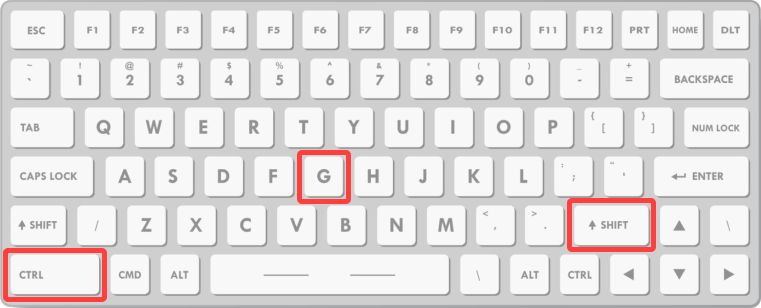
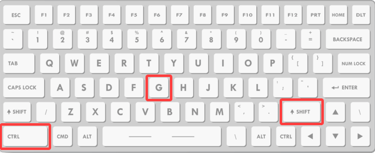
Gaming mode
To lock and unlock
Press: Left CTRL + Right SHIFT + G (simultaneously)
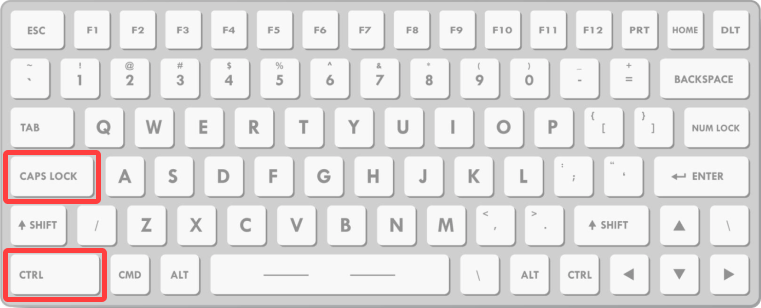
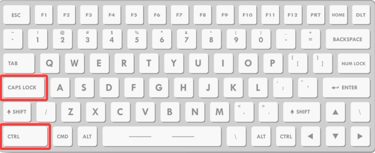
Hop to type
To lock and unlock
Press: Left CTRL + CAPS LOCK (simultaneously)
Focus mode
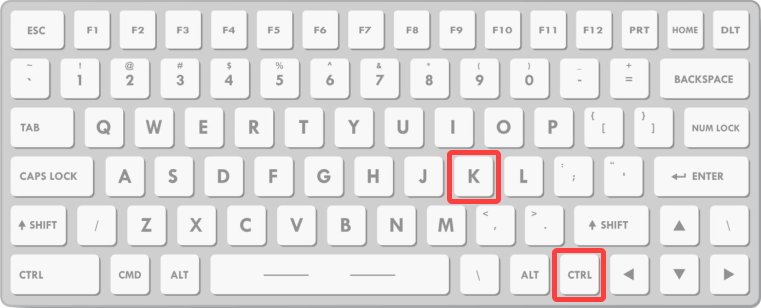
To lock and unlock
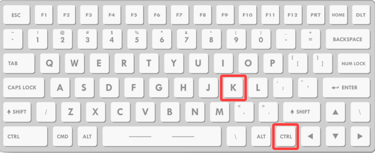
One side lock: Right CTRL + K
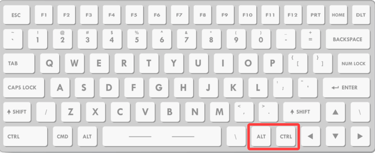
Design mode
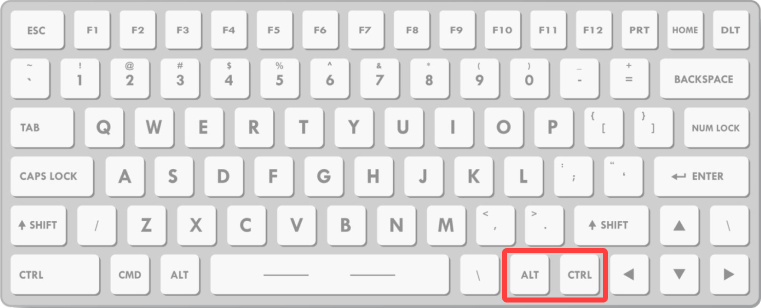
To lock and unlock
Press: Right ALT + Right CTRL (simultaneously)
Awake mode
To lock and unlock
Activate: Left CTRL + Right SHIFT + S (simultaneously)
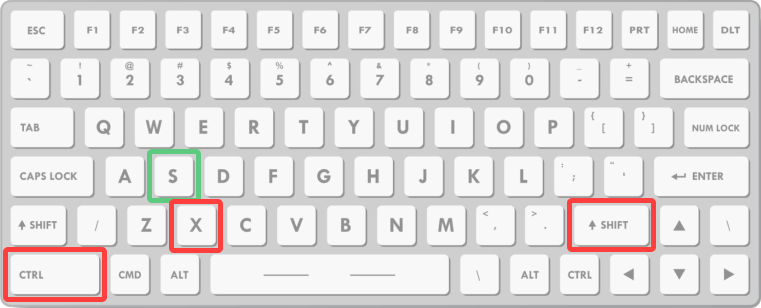
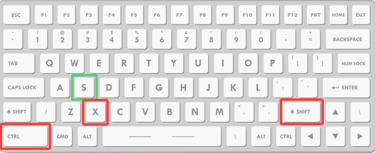
Note: Make sure that you it on the side you want your computer to stay awake
Deactivate: Left CTRL + Right SHIFT + X (simultaneously)
Screen Alignment
Transition screen calibration
Have different screens and want your mouse pointer to come out at the same height in the streight line?
Note: After you adjust it to reset, you will need to reset the box to factory settings.
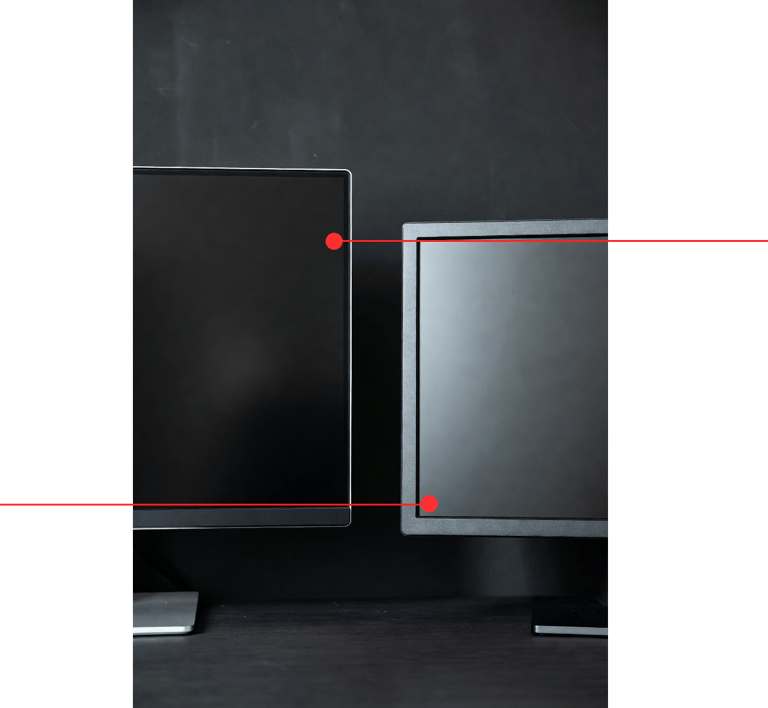
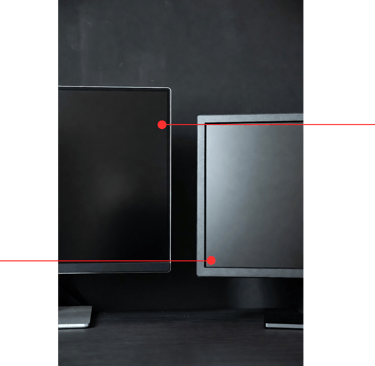
Directions
Place your mouse cursor on the larger screen at the height of the smaller/lower screen (illustrated) and press: Right SHIFT + F12 + Y (simultaneously) - Your LED (and caps lock) should flash in confirmation.
Continue with the bottom border (if it's above the larger screen's border). This will save both parameters to the flash drive.
Multiple Screen Setup
No shortcuts required
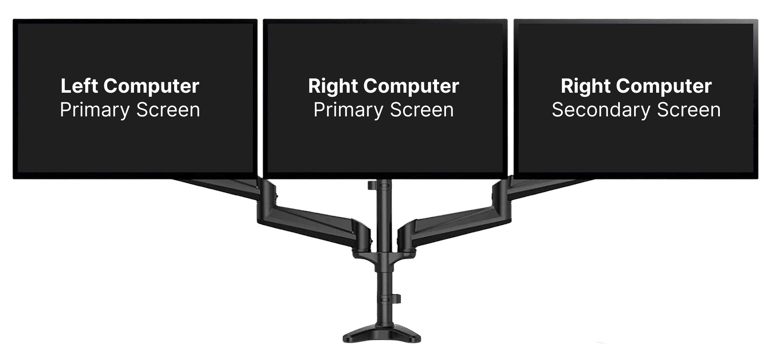
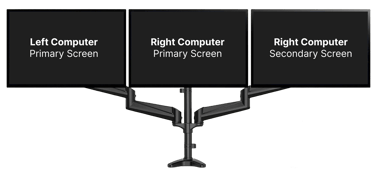
In case you have more than one screen per computer, you will need to keep your left and right screens as primary, and all secondaries should go in the direction of the computer side.
Dashboard Access
Note: Dashboard can only be accessed on computers that companies like CrowdStrike do not protect. Corporate computers are protected and, therefore, cannot mount USB drives. (Use shortcut features below if you have no access to personal computers.
To access the dashboard:
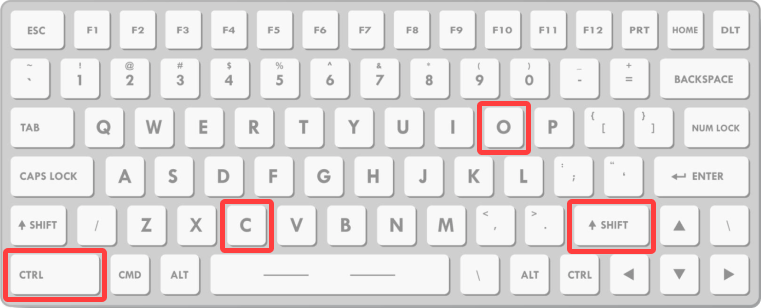
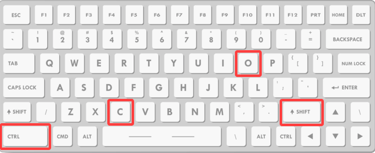
Press: Left CTRL + Right SHIFT + C + O (Capital O, not a zero) - (simultaneously and hold it for a 2 seconds)
1
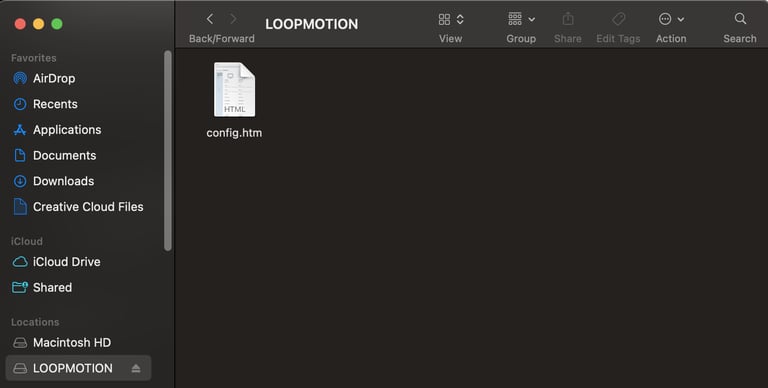
The drive will mount: LOOPMOTION
2
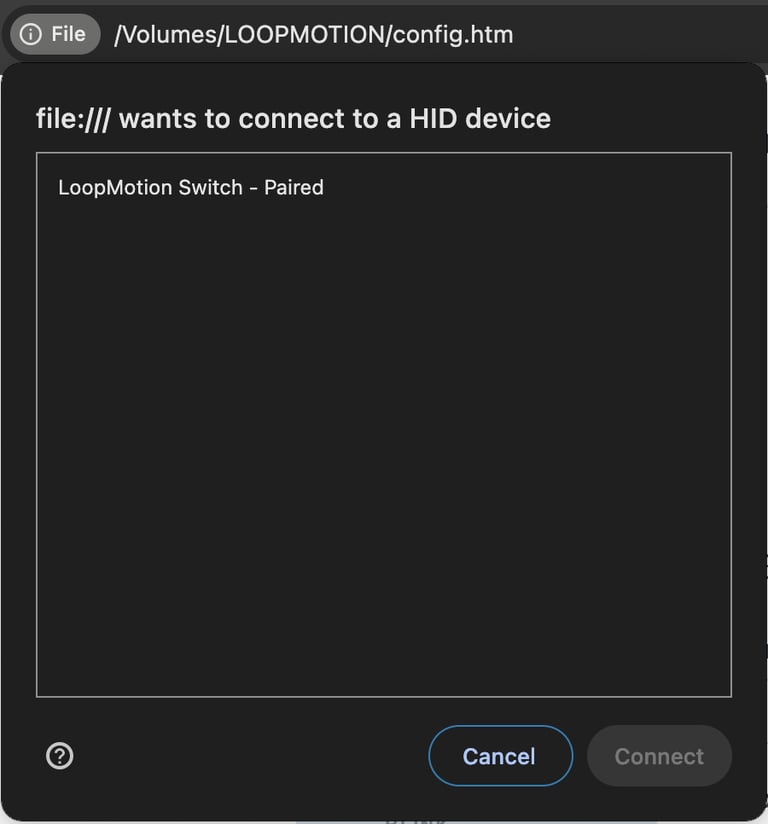
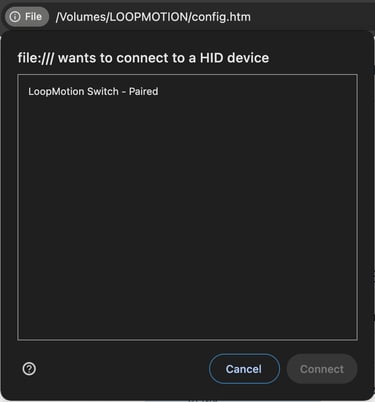
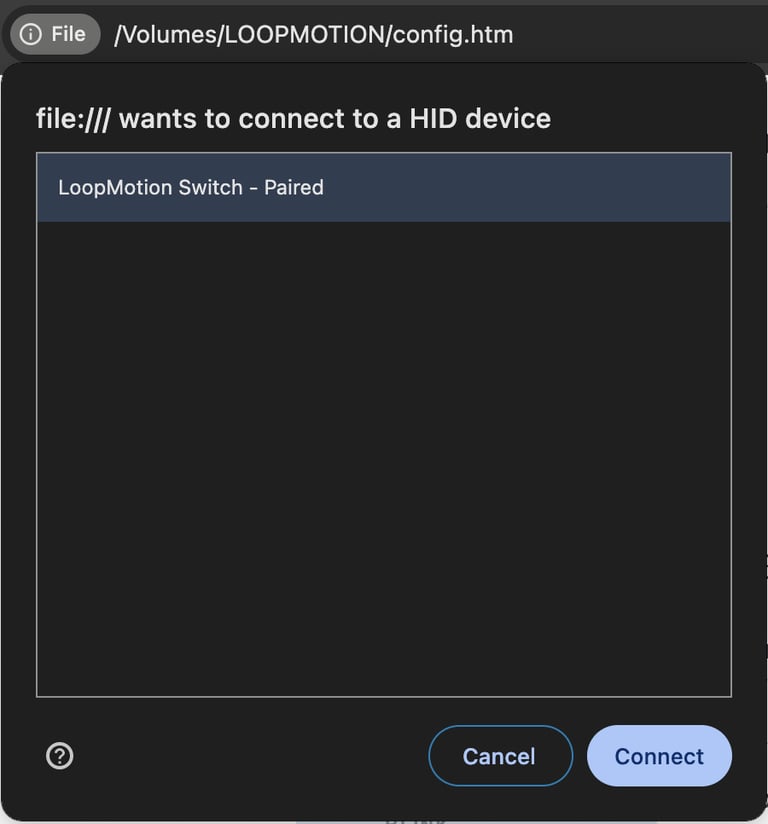
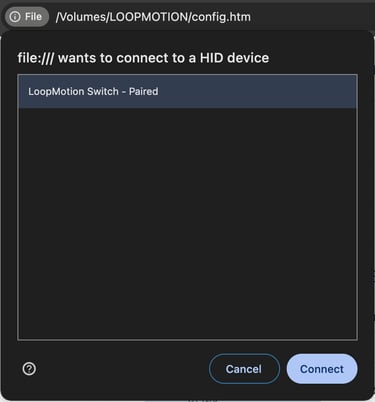
Open the config.htm file. (Use chrome browser) You will see the pop-up on the top-left corner
3
Select LoopMotion Switch and hit Connect
Make sure to save & exit after updates
Firmware Updates
New realeases with updates will be posted here
Directions (Video Instruction below)
Download the latest file
Use a pencil to press into a hole on the back of the box next to the USB-C and connect the USB to the computer.
The drive will mount.
Open the drive and drag the file.
REPEAT: On the other side. (Same file)
Note: You must do both sides.
Download section

FAQs
How does it work?
It seamlessly switches your keyboard and mouse between two computers without requiring any button presses. As you reach the screen ends, LoopMotion instantly switches to the same position on the opposite computer screen.
Which devices are compatible?
Is there any lag or delay?
Do I need to install software?
Can I copy and paste between devices?
Not that we know of. We had tests done, and it performed at a higher than 1000Hz polling rate.
No, you cannot. This feature protects both computers from receiving malware between devices.
Windows, Linux, and macOS operating systems.
No, you do not need to install anything to use the switch. It is plug-and-play.
How many screens per device can I use?
You can use up to 3 screens per device as long as your device can support as many screens. (example: MacBook Air M versions can only support 2 screens.
Another thing to notice is that you will have to activate those screens in the offline dashboard.
You must use the main assigned screens in the center for it to work.
Contact
Questions? Reach out anytime, we're here.
© 2026. All rights reserved. WeScreen LLC (LoopMotion ™)
WeScreen LLC - Delaware Registered Company # 6947803
LoopMotion™ Registered #99431439
Global Company - HQ in Brooklyn, NY - Built with ❤️
Company
Additional resources
Follow us